
Since the rollout of iOS 26.2, the overall iPhone user experience feels noticeably more refined. Apple has focused heavily on visual polish, small quality-of-life improvements, and subtle but useful feature upgrades.
Below is a complete breakdown of everything new in iOS 26.2. Nothing is skipped.
Measure App Gets a New UI Animation
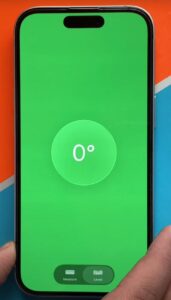
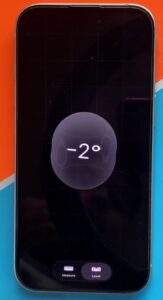
The Measure app now features a refreshed interface, especially in the Level tool. When your iPhone reaches a perfectly flat position at 0°, the indicator turns green with a fluid animation.
Compared to the older, basic animation, the new effect feels more premium. Apple has added a liquid glass style animation with a subtle water-drop effect, making the app look more modern and polished.
New Depth Effect Lock Screen Wallpaper
iOS 26.2 introduces a new lock screen wallpaper customization with a depth effect. The clock appears partially above and partially below a water-like surface.
You can enable this by selecting the wallpaper and tapping the three-dot menu, then turning on the Depth Effect option. The result is a visually striking lock screen where transparency and layering feel more dynamic.
This feature is purely visual, but many users will appreciate the added customization.
Podcast App Now Supports Chapters
The Podcasts app finally supports chapters. This allows you to swipe through a podcast episode and jump directly to specific sections.
If there’s a part you want to skip, you can now do it easily, similar to how chapters work on YouTube. This is a major usability upgrade for long-form podcast listeners.
Alarms Inside the Reminders App
One of the most useful additions in iOS 26.2 is the ability to set alarms directly within the Reminders app.
When creating a reminder, you’ll see a new “Urgent” option. Enabling it lets you attach an alarm to that reminder, ensuring you don’t miss important tasks.
There’s also a hidden setting most users overlook:
- Go to Settings → Apps → Reminders
- Scroll down and enable Complete from Alarm
Once enabled, the reminder will automatically be marked as completed as soon as the alarm stops, instead of showing snooze or dismiss options.
Easier Air-Drop Sharing With Frequent Contacts
AirDrop now allows you to manage non-contact sharing more intelligently.
Under Settings → AirDrop, you’ll find a new option to manage non-contact Air-Drop connections. Once selected, you can transfer files to chosen people without re-pairing for up to 30 days.
This is especially helpful for office trips, events, or frequent short-term sharing.
“Resend as Text Message” Update in Messages
Apple has renamed and improved the messaging fallback option.
Previously known as “Send as Text Message,” it is now called Resend as Text Message. If iMessage or RCS is unavailable, your message will automatically resend as a standard SMS.
This change makes message delivery more reliable when network conditions are unstable.
Improved Notification Clear Animation
There’s a subtle but noticeable visual change in notifications.
If you long-press the clear (X) button in the notification center, the background now appears more transparent and fluid. It aligns better with Apple’s liquid glass design language introduced in iOS 26.
New App Icon Jiggle Animation
When you long-press anywhere on the home screen, app icons now have a slightly updated jiggle animation.
This is the same refined animation style Apple showcased during WWDC, adding a smoother and more playful visual touch.
Reduce White Point Enhancement
Under Settings → Accessibility → Display & Text Size, the Reduce White Point option now feels more effective.
Once enabled, you get a slider to control intensity. This helps reduce harsh brightness when using your phone in dark environments and makes bright colors easier on the eyes.
It also enhances the transparency and liquid glass feel across the system.
Lock Screen Clock Transparency Control
Lock screen customization now includes a transparency slider for the clock.
When customizing your lock screen, choose the glass-style clock and use the third slider to adjust transparency. This allows you to fine-tune how subtle or bold the clock appears.
Call Haptics for Answer and Disconnect
iOS 26.2 adds a new haptic feedback option for phone calls.
Under Settings → Apps → Phone, you’ll find a new toggle that triggers subtle vibrations when a call is answered or disconnected. This helps you confirm call actions without looking at the screen.
Easier Switching Between Glass and Tinted UI
Previously, switching to a tinted UI required disabling Reduce Transparency from Accessibility settings.
Now, when selecting Tinted under Display & Brightness → Liquid Glass, iOS gives you a direct option to turn off transparency automatically and apply the tinted mode.
This makes switching between solid and glass styles much more convenient.
Emergency and Test Alerts (Region-Based)
In the US, Canada, and parts of North America, iOS 26.2 improves alert handling.
Under Settings → Notifications, users can enable test alerts such as emergency or earthquake alerts. These allow governments to test alert systems without causing confusion during real emergencies.
In India, this appears as government test alerts, while in the US, earthquake and emergency alerts are more common.
Final Thoughts
iOS 26.2 is less about big headline features and more about refinement. Visual improvements, better animations, smarter settings, and small usability upgrades collectively make the iPhone feel more polished and modern.
If you appreciate subtle enhancements and cleaner UI behaviour, this update is definitely worth installing.